Text Displays
Text Displays render Minecraft text in your rig. They can be animated just like Groups.
Element Options
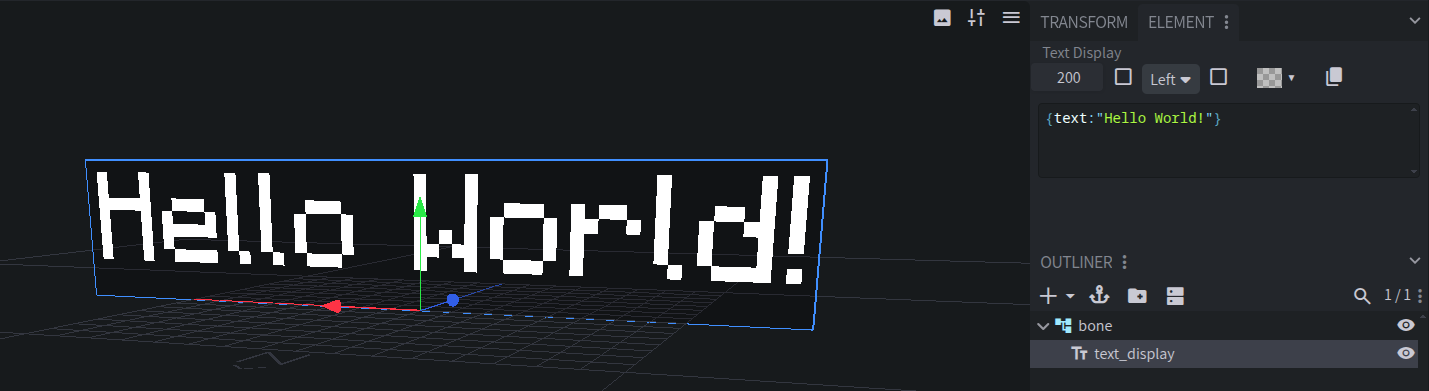
Edit these in the Text Display panel while a Text Display is selected.
Text
The text to display, as a text component. Colors, formatting, translations, keybinds, and fonts all work.
For example, this shows “Hello” in bold red:
{ text: 'Hello', color: 'red', bold: true }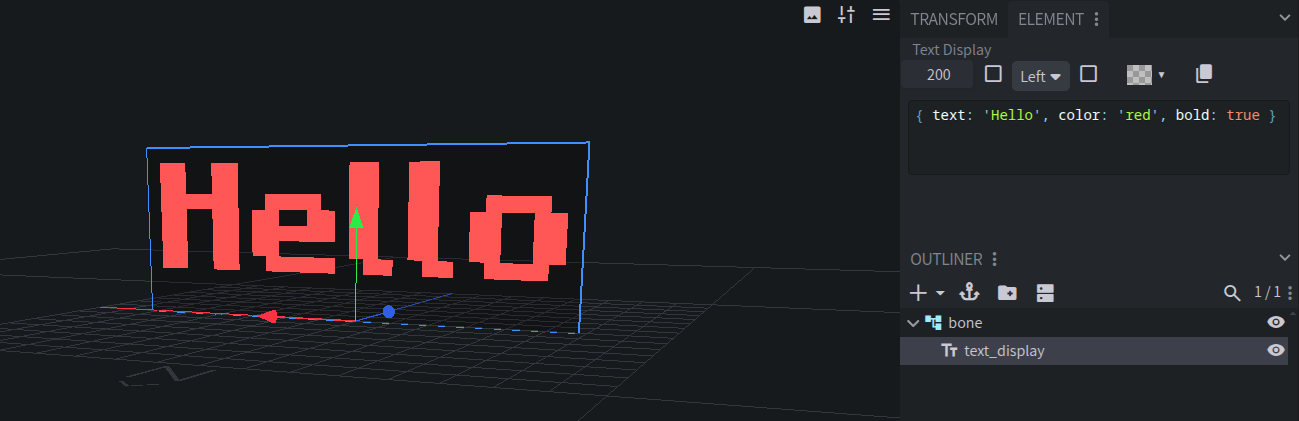
The preview wraps lines exactly like Minecraft does. To preview custom fonts, add the Resource Pack that defines them to your Preview Resource Packs.
Use Copy exported text component to copy the text exactly as it will be exported.
Line Width
How wide a line can get, in pixels, before it wraps. Default:
200.Background Color
The color of the panel behind the text, including its transparency. Default:
#00000040, a see-through black.Text Alignment
Left, Center (the default), or Right.
Text Shadow
Draws a drop shadow behind the text, like chat text.
See Through
Shows the text through blocks.
Pivot
Text Displays rotate and scale around their pivot point. Move it with Blockbench’s pivot tool.
Entity Creation
A Text Display always creates a text_display entity.
Display Entity Config
Right-click a Text Display in the Outliner and choose Display Entity Config. See Display Entity Config. Enchanted and glowing aren’t available for Text Displays.
 DP Icons